
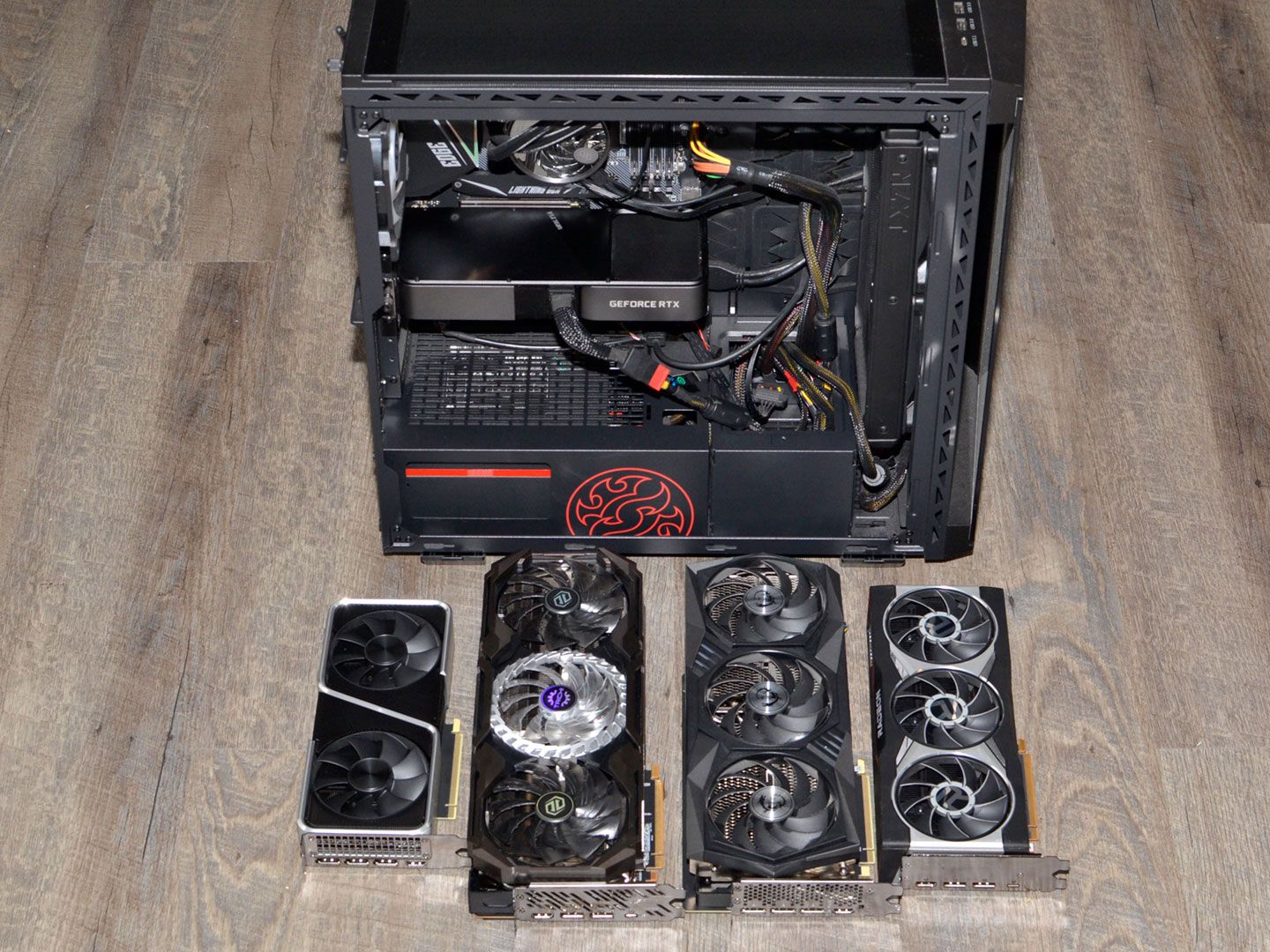
Last spring, a 12-person accounting firm in Ohio bought 12 workstations with $900 gaming GPUs. Nine months later, their IT consultant was still fielding calls about driver crashes on dual-monitor setups, and the finance lead quietly admitted that nobody had ever opened a 3D application on any of those machines. That is roughly $6,000 spent on silicon nobody needed.
I have watched that mistake repeat across dental offices, law firms, and logistics depots for years, and it almost always traces back to the same assumption: bigger card, better computer. For office work, the opposite is usually true. If you are stocking a fleet through a VAR, check how your supplier organizes computer video cards by category before you start comparing clock speeds, because the spec sheet tells you far less than the workload does.
Here is the short version. Match the card to the number of displays, the resolution, and whether any software on the machine actually uses the GPU. Everything past that is money you will never see again.
What Do Your Monitors Actually Demand?
Start with the screens, not the card. A card’s job in an office is to push pixels to displays, and that job is defined almost entirely by count and resolution. One 1080p panel at 60Hz is nearly free to drive. Four 4K panels at 60Hz is a genuinely different engineering problem.
Modern integrated graphics on mainstream business CPUs handle two 4K displays comfortably for email, spreadsheets, and browser tabs, which covers a huge share of office roles. Where integrated graphics start to stumble is beyond three displays, or when you need consistent high refresh rates across mixed monitor models.
Pop quiz for your own office: how many people genuinely run four monitors? In my experience, it is the traders, the video editors, and the one person who claims they need it. That last person usually just wants a wider spreadsheet. Give them a 34-inch ultrawide and save the card budget.
Three Workload Tiers, One Decision
I sort every office GPU request into three buckets, and I have used this split for years because it ends the debate fast.
- Tier 1, display driving only. Email, documents, CRM, web apps, video calls. Integrated graphics handle this. Buy a second monitor instead.
- Tier 2, light acceleration. Photo editing, CAD review, multi-stream video conferencing, or five or more displays. A modest discrete card earns its slot here.
- Tier 3, real rendering. 3D modeling, video production, medical imaging review, or machine learning work. Now you are shopping seriously, and you should read the software vendor’s own certified hardware list before anything else.
The tier system works because it forces you to name the application. If nobody can name the application, you are in Tier 1, and the honest answer is to spend the money on RAM or a faster SSD instead.
Workstation Cards vs. Gaming Cards
This is where buyers get talked into the wrong product, so let me put a stake in the ground. For a standard office fleet, a business-class card with long-term driver support beats a consumer gaming card at the same price, even when the gaming card wins on raw benchmarks.
Why? Support lifecycles. Workstation and business lines get validated drivers for professional applications and tend to be supported for years longer, which matters when you refresh a machine only every five or six years. Gaming cards chase frame rates with frequent driver updates that occasionally break professional software. PCMag has covered this split in depth over the years, and the pattern has held: the right answer depends on whether your software is certified for the card.
There is a real exception for small businesses running a single creative workstation. If your marketing hire lives in Adobe Premiere and renders twice a week, a consumer card can be the pragmatic pick. Just do not roll that same model across 40 finance desks because it looked good on a benchmark chart.
A Buying Checklist You Can Hand to Procurement
Run this before the purchase order goes out. It takes about 20 minutes and saves months of follow-up.
- List the exact applications each machine will run, with versions.
- Count displays and note resolution and refresh rate for each.
- Check the software vendor’s certified hardware list for Tier 3 users.
- Confirm power supply wattage and available PCIe slot space in the chassis.
- Verify the card supports the display connectors your monitors use, or budget for adapters.
- Ask the supplier about driver support length in writing.
- Standardize on one or two models across the fleet so spare parts and driver packages stay simple.
Step seven is the one people skip, and it is the one that saves the most money. A uniform fleet lets you keep one spare card on the shelf instead of hunting an exact match for a three-year-old build when something fails.
The Power and Heat Math Nobody Runs
Every watt a card draws becomes heat your HVAC has to remove. A single high-end card pulling several hundred watts looks harmless on one invoice. Multiply it across 60 workstations running eight hours a day, and you are paying for electricity twice: once at the wall, once at the cooling unit. The Department of Energy publishes guidance on commercial building energy use that makes this arithmetic pretty uncomfortable.
For most offices, a card that draws a fraction of that wattage does the entire job. You also dodge the noise problem, which matters more than people admit in open-plan spaces. I once walked through a data-heavy sales floor where six machines with oversized coolers made a constant low whine. Nobody had connected the noise to the GPU purchase. Everyone hated the office anyway.
When to Skip the Discrete Card Entirely
If your office runs browser-based software, cloud CRMs, and Microsoft 365, integrated graphics are not a compromise. They are the correct engineering choice. Modern chips handle multiple 4K displays, hardware-accelerated video decoding, and the kind of light compositing that a typical knowledge worker does all day.
Skipping the card also simplifies everything downstream. Fewer drivers to update, fewer failure points, lower power draw, less heat, smaller chassis options, and cheaper replacement units. That is a lot of operational upside for giving up performance your team will never notice.
One caveat: some virtual desktop and remote work setups do benefit from a discrete card on the host side, particularly when multiple users share a machine. Test that configuration before you buy 30 of them. Nothing stings like discovering the bottleneck on week two, after the invoices are paid. The IEEE publishes technical material on graphics and display computing if you want to go deeper on how these workloads differ under the hood.
Frequently Confused: Video Cards and Video Capture
Teams sometimes bundle capturing hardware into the same conversation as display output, which muddies the budget. A graphics card renders and outputs images. A capture card takes an incoming video signal and records it, which is a different job for a different user, usually someone recording presentations, webinars, or training sessions.
Keep those purchases separate in your planning. If one person records company webinars, that is one capture device, not a reason to upgrade the whole floor’s rendering power.
There is also the refresh timing question. If your fleet is due for replacement in eight months, buying a mid-range card today to extend a four-year-old tower is usually a bad trade. Put the money toward the new machine and specify the right card in that purchase instead.
Where This Lands for Your Fleet
Most office workstations need integrated graphics or a modest business-class card, and the fancy option is almost always wasted budget. Save the serious rendering hardware for the two or three people whose software actually demands it, and standardize the rest on something boring, efficient, and easy to support.
Before your next order goes out, pull your team’s actual software list and count the monitors on each desk. If you cannot justify a Tier 3 card with a named application, you just found a few thousand dollars for the projects that do move your business.